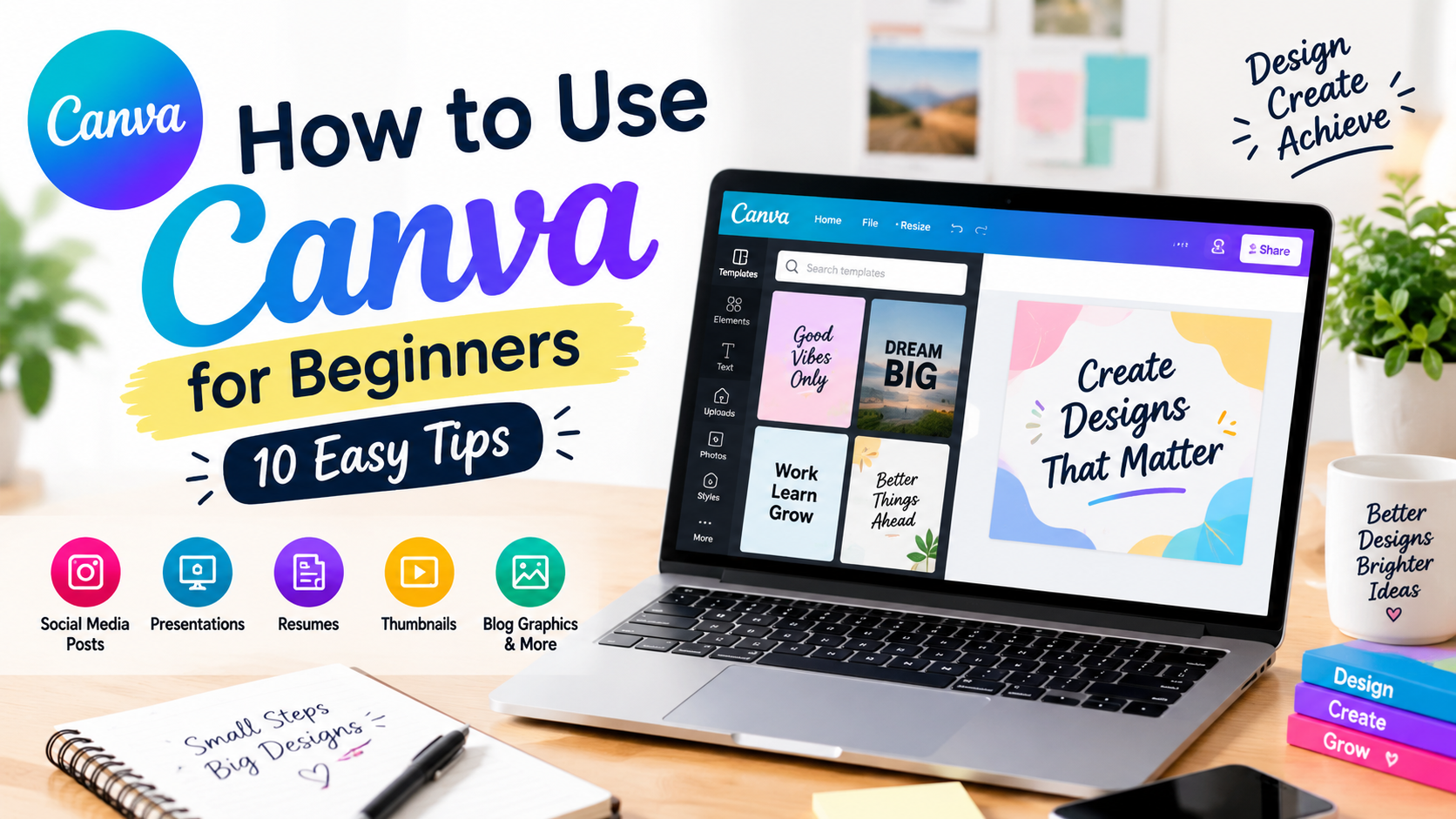
How to use Canva for beginners is a useful skill for students, freelancers, small business owners, bloggers, and anyone who wants to create attractive designs without advanced graphic design experience. Canva provides ready-made templates and simple editing tools that make it possible to create social media posts, presentations, posters, resumes, thumbnails, and other visual content.
You do not need to become a professional designer before using Canva. With some basic practice, beginners can learn how to choose templates, edit text, add images, adjust colors, and create clean designs.
In this guide, you will learn 10 easy ways to use Canva for beginners and how these features can help with study, work, content creation, and online projects.
1. Create Social Media Posts
One of the easiest ways to use Canva is to create social media graphics.
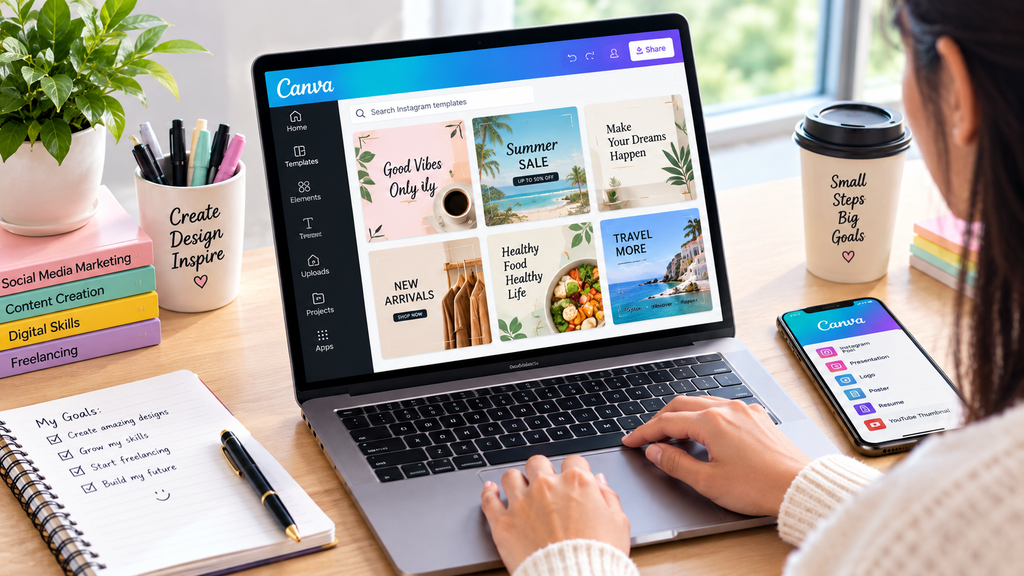
Canva provides templates for platforms such as Instagram, Facebook, Pinterest, and other social media channels. Instead of creating a design from an empty page, beginners can select a suitable template and customize it.
You can change the text, images, fonts, and other elements according to your needs.
For example, a small business can create promotional posts, while a student can design an educational post or announcement.
2. Design Presentations
Canva can also help beginners create attractive presentations.
Students can select a presentation template and add their own content. You can create separate slides for the introduction, main points, examples, and conclusion.
A simple presentation design is usually easier to understand than slides containing too much text.
When creating a presentation, keep the text short and use headings to guide the audience through the topic.
3. Make a Professional Resume
A resume is another useful project beginners can create with Canva.
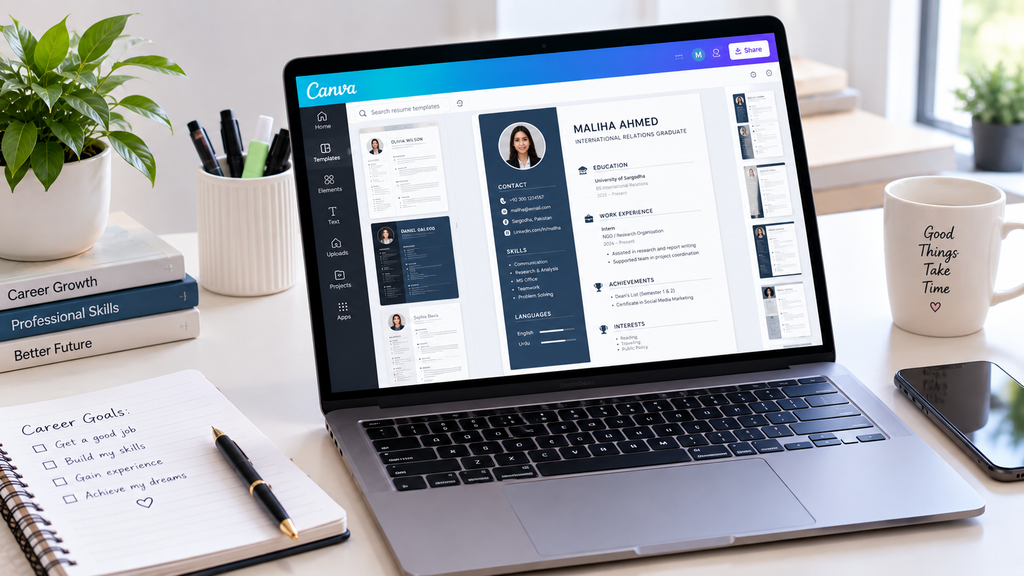
Instead of using a completely plain document, you can choose a simple resume template and replace the sample information with your own education, skills, experience, and contact details.
However, avoid using too many decorative elements. A resume should remain easy to read and professional.
Before sending it to an employer, check spelling, dates, contact information, and formatting carefully.
4. Create YouTube Thumbnails
YouTube thumbnails are another popular use of Canva.
A good thumbnail should communicate the main idea of a video quickly. Beginners can start with a YouTube thumbnail template and customize its text and images.
Try to use a short headline rather than placing a complete sentence on the thumbnail.
For example, a video about freelancing could use a short phrase such as:
“Start Freelancing in 2026”
The design should make the topic clear without becoming visually crowded.
5. Design Pinterest Pins
Bloggers can use Canva to create Pinterest pins for their articles.
A pin can include the article title, a relevant image, and a simple visual design. You can create multiple designs for the same article and test different headlines and layouts.
For a website such as an informative blog, Pinterest graphics can also help make articles more visually shareable.
6. Create Blog Graphics
Canva is useful for bloggers who need images for their website.
You can create:
- Blog banners
- Quote graphics
- Infographics
- Step-by-step visuals
- Featured images
- Simple educational graphics
For example, an article about online earning could have a clean graphic showing different digital skills.
The graphic should support the article rather than simply repeat a large amount of text.
7. Make Posters and Flyers
Beginners can also use Canva to create posters and flyers.
This can be useful for:
- University events
- Workshops
- Small businesses
- Online classes
- Community activities
- Promotional campaigns
Start with a template that matches the purpose of the design. Then replace the sample text and images with your own information.
Make the most important information easy to notice, such as the event name, date, location, or contact details.
8. Create Simple Infographics
Infographics can make information easier to understand.
For example, you can turn a list of five study tips into a visual infographic with a heading, five short points, and simple icons.
When making an infographic, avoid adding too much information. Use short sentences and organize the content into clear sections.
This is especially useful for educational blogs and social media content.
9. Use Canva for Freelancing Projects
Canva can also become part of a beginner’s freelancing skill set.
A freelancer can use Canva to create social media graphics, simple presentations, promotional designs, thumbnails, and other visual content for clients.
Beginners should first practice by creating sample designs. These samples can later become part of a portfolio.
For example, you could create five fictional social media posts for a restaurant, clothing brand, or online store and use them to demonstrate your design ability.
10. Create Consistent Brand Designs
Canva can help maintain a consistent visual style across different designs.
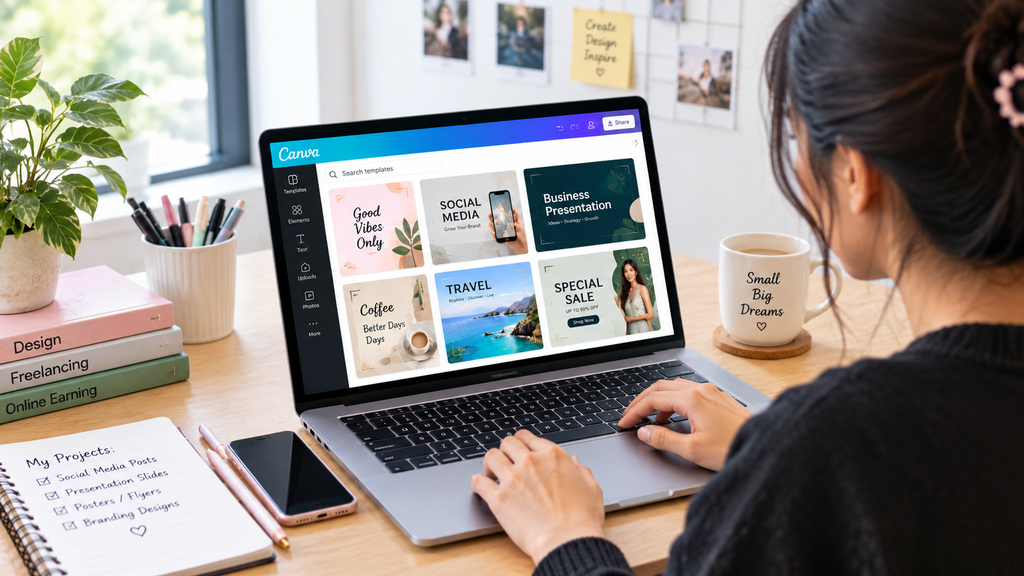
For example, a small business may use similar fonts, colors, and design elements across its social media posts.
Consistency can make different graphics look like they belong to the same brand.
Beginners should therefore choose a small number of fonts and colors instead of using a different style in every design.
Canva Tips for Beginners
If you are learning Canva for the first time, start with simple projects instead of trying to create complicated designs immediately.
Keep these tips in mind:
- Choose simple templates.
- Avoid using too many fonts.
- Keep enough empty space around text.
- Use high-quality images.
- Make headings easy to read.
- Do not overcrowd the design.
- Keep colors consistent.
- Check spelling before downloading.
- Compare your design with similar professional examples.
The goal is not to add as many elements as possible. A clean design can often communicate information more effectively.
Can Beginners Learn Canva Without Graphic Design Experience?
Yes. Canva is designed to make visual design more accessible to beginners.
You do not need advanced knowledge of professional graphic design software to start creating basic designs. The important thing is regular practice.
Start with one type of design, such as social media posts or presentations. After becoming comfortable with basic editing, you can move to more advanced projects.
You can also study professional designs to understand how they use spacing, typography, images, and colors.
Final Thoughts
Learning how to use Canva for beginners can be useful for students, bloggers, freelancers, content creators, and small businesses. You can use Canva to create presentations, resumes, social media posts, thumbnails, blog graphics, posters, and infographics.
The best way to improve is to practice regularly and focus on simple, clean designs. You do not need to learn every feature at once. Start with one project, understand the basic tools, and gradually explore more options.
With consistent practice, Canva can become a useful digital skill for both personal projects and online work.
How to Use Canva for Beginners: 10 Easy Ways to Create Professional Designs
Learning how to use Canva for beginners can be a practical skill for students, freelancers, bloggers, and small business owners. The platform makes graphic creation easier by offering simple editing features and pre-designed layouts. With Canva, beginners can work on different types of visual content, including social media graphics, presentations, posters, CVs, YouTube thumbnails, and promotional materials. You can start creating useful designs even if you have little or no previous experience with graphic design. Instead of spending a long time learning complicated design software, beginners can explore Canva’s basic features and gradually improve their design skills through practice.
With some basic practice, beginners can learn how to choose templates, edit text, add images, adjust colors, and create clean designs.
In this guide, you will learn 10 easy ways to use Canva for beginners and how these features can help with study, work, content creation, and online projects.
1. Create Social Media Posts
One of the easiest ways to use Canva is to create social media graphics.
Canva provides templates for platforms such as Instagram, Facebook, Pinterest, and other social media channels.Beginners do not have to start every project with a blank page. Canva offers different pre-designed layouts that can be used as a starting point and then adjusted to match the purpose of the design. Users can replace the written content, pictures, fonts, and other visual elements to create something that suits their needs. For instance, a business owner might prepare a post to introduce a product or service, while a student could create a simple graphic for a class project, study topic, or announcement..
2. Design Presentations
Beginners can use Canva to prepare visually appealing presentations without having advanced design knowledge. Students can choose a layout that matches their topic and then add their own information, images, and other details to make the presentation suitable for their class or project.You can create separate slides for the introduction, main points, examples, and conclusion.
A simple presentation design is usually easier to understand than slides containing too much text.
When creating a presentation, keep the text short and use headings to guide the audience through the topic.
3. Make a Professional Resume
Creating a professional-looking resume is another practical project that beginners can easily work on using Canva.Instead of using a completely plain document, you can choose a simple resume template and replace the sample information with your own education, skills, experience, and contact details.
However, avoid using too many decorative elements. A resume should remain easy to read and professional.
Before sending it to an employer, check spelling, dates, contact information, and formatting carefully.
4. Create YouTube Thumbnails
Canva is also useful for designing eye-catching YouTube thumbnails. Since viewers often decide what to watch within a few seconds, the thumbnail should make the video’s topic clear at a glance. Beginners can choose a suitable thumbnail layout and personalize it by changing the wording, pictures, and other design elements. It is usually better to keep the text brief and attention-grabbing instead of filling the thumbnail with a long sentence. For instance, a freelancing video could use a simple phrase such as:
“Start Freelancing in 2026”
The design should make the topic clear without becoming visually crowded.
5. Design Pinterest Pins
Blog owners can use Canva to design eye-catching Pinterest graphics that promote and direct readers to their blog posts..
A pin can include the article title, a relevant image, and a simple visual design. You can create multiple designs for the same article and test different headlines and layouts.
For a website such as an informative blog, Pinterest graphics can also help make articles more visually shareable.
6. Create Blog Graphics
For bloggers, Canva can be a convenient way to prepare custom visuals that make their website content more attractive and engaging.
You can create:
- Blog banners
- Quote graphics
- Infographics
- Step-by-step visuals
- Featured images
- Simple educational graphics
For example, an article about online earning could have a clean graphic showing different digital skills.
The graphic should support the article rather than simply repeat a large amount of text.
7. Make Posters and Flyers
People who are new to design can also use Canva to make simple posters, flyers, and promotional graphics for different purposes..
This can be useful for:
- University events
- Workshops
- Small businesses
- Online classes
- Community activities
- Promotional campaigns
Choose a ready-made layout that fits the type and purpose of your project.. Then replace the sample text and images with your own information.
Make the most important information easy to notice, such as the event name, date, location, or contact details.
8. Create Simple Infographics
Infographics can make information easier to understand.
For example, you can turn a list of five study tips into a visual infographic with a heading, five short points, and simple icons.
When making an infographic, avoid adding too much information. Use short sentences and organize the content into clear sections.
This is especially useful for educational blogs and social media content.
9. Use Canva for Freelancing Projects
Canva can also become part of a beginner’s freelancing skill set.
Freelancers can use Canva to prepare different visual materials for clients, such as social media posts, presentations, promotional graphics, video thumbnails, and other digital designs.
Beginners should first practice by creating sample designs. These samples can later become part of a portfolio.
For example, you could create five fictional social media posts for a restaurant, clothing brand, or online store and use them to demonstrate your design ability.
10. Create Consistent Brand Designs
Canva can help maintain a consistent visual style across different designs.
For example, a small business may use similar fonts, colors, and design elements across its social media posts.
Consistency can make different graphics look like they belong to the same brand.
Beginners should therefore choose a small number of fonts and colors instead of using a different style in every design.
Canva Tips for Beginners
If you are new to Canva, begin with easy designs and gradually move on to more advanced projects as your skills improve.
Keep these tips in mind:
- Choose simple templates.
- Avoid using too many fonts.
- Keep enough empty space around text.
- Use high-quality images.
- Make headings easy to read.
- Do not overcrowd the design.
- Keep colors consistent.
- Check spelling before downloading.
- Compare your design with similar professional examples.
A good design is not about filling the page with too many elements; keeping it simple and well-organized can make the final result more effective.
Can Beginners Learn Canva Without Graphic Design Experience?
Yes. Canva is designed to make visual design more accessible to beginners.
You do not need advanced knowledge of professional graphic design software to start creating basic designs. The important thing is regular practice.
Start with one type of design, such as social media posts or presentations. After becoming comfortable with basic editing, you can move to more advanced projects.
You can also study professional designs to understand how they use spacing, typography, images, and colors.
Final Thoughts
Learning how to use Canva for beginners can be useful for students, bloggers, freelancers, content creators, and small businesses. You can use Canva to create presentations, resumes, social media posts, thumbnails, blog graphics, posters, and infographics.
The best way to improve is to practice regularly and focus on simple, clean designs. You do not need to learn every feature at once. Start with one project, understand the basic tools, and gradually explore more options.
With consistent practice, Canva can become a useful digital skill for both personal projects and online work.
How to use Canva for beginners is a useful skill for students, freelancers, small business owners, bloggers, and anyone who wants to create attractive designs without advanced graphic design experience. Canva provides ready-made templates and simple editing tools that make it possible to create social media posts, presentations, posters, resumes, thumbnails, and other visual content.
You do not need to become a professional designer before using Canva. With some basic practice, beginners can learn how to choose templates, edit text, add images, adjust colors, and create clean designs.
In this guide, you will learn 10 easy ways to use Canva for beginners and how these features can help with study, work, content creation, and online projects.
1. Create Social Media Posts
One of the easiest ways to use Canva is to create social media graphics.
Canva provides templates for platforms such as Instagram, Facebook, Pinterest, and other social media channels. Instead of creating a design from an empty page, beginners can select a suitable template and customize it.
You can change the text, images, fonts, and other elements according to your needs.
For example, a small business can create promotional posts, while a student can design an educational post or announcement.
2. Design Presentations
Canva can also help beginners create attractive presentations.
Students can select a presentation template and add their own content. You can create separate slides for the introduction, main points, examples, and conclusion.
A simple presentation design is usually easier to understand than slides containing too much text.
When creating a presentation, keep the text short and use headings to guide the audience through the topic.
3. Make a Professional Resume
A resume is another useful project beginners can create with Canva.
Instead of using a completely plain document, you can choose a simple resume template and replace the sample information with your own education, skills, experience, and contact details.
However, avoid using too many decorative elements. A resume should remain easy to read and professional.
Before sending it to an employer, check spelling, dates, contact information, and formatting carefully.
4. Create YouTube Thumbnails
YouTube thumbnails are another popular use of Canva.
A good thumbnail should communicate the main idea of a video quickly. Beginners can start with a YouTube thumbnail template and customize its text and images.
Try to use a short headline rather than placing a complete sentence on the thumbnail.
For example, a video about freelancing could use a short phrase such as:
“Start Freelancing in 2026”
The design should make the topic clear without becoming visually crowded.
5. Design Pinterest Pins
Bloggers can use Canva to create Pinterest pins for their articles.
A pin can include the article title, a relevant image, and a simple visual design. You can create multiple designs for the same article and test different headlines and layouts.
For a website such as an informative blog, Pinterest graphics can also help make articles more visually shareable.
6. Create Blog Graphics
Canva is useful for bloggers who need images for their website.
You can create:
- Blog banners
- Quote graphics
- Infographics
- Step-by-step visuals
- Featured images
- Simple educational graphics
For example, an article about online earning could have a clean graphic showing different digital skills.
The graphic should support the article rather than simply repeat a large amount of text.
7. Make Posters and Flyers
Beginners can also use Canva to create posters and flyers.
This can be useful for:
- University events
- Workshops
- Small businesses
- Online classes
- Community activities
- Promotional campaigns
Start with a template that matches the purpose of the design. Then replace the sample text and images with your own information.
Make the most important information easy to notice, such as the event name, date, location, or contact details.
8. Create Simple Infographics
Infographics can make information easier to understand.
For example, you can turn a list of five study tips into a visual infographic with a heading, five short points, and simple icons.
When making an infographic, avoid adding too much information. Use short sentences and organize the content into clear sections.
This is especially useful for educational blogs and social media content.
9. Use Canva for Freelancing Projects
Canva can also become part of a beginner’s freelancing skill set.
A freelancer can use Canva to create social media graphics, simple presentations, promotional designs, thumbnails, and other visual content for clients.
Beginners should first practice by creating sample designs. These samples can later become part of a portfolio.
For example, you could create five fictional social media posts for a restaurant, clothing brand, or online store and use them to demonstrate your design ability.
10. Create Consistent Brand Designs
Canva can help maintain a consistent visual style across different designs.
For example, a small business may use similar fonts, colors, and design elements across its social media posts.
Consistency can make different graphics look like they belong to the same brand.
Beginners should therefore choose a small number of fonts and colors instead of using a different style in every design.
Canva Tips for Beginners
If you are learning Canva for the first time, start with simple projects instead of trying to create complicated designs immediately.
Keep these tips in mind:
- Choose simple templates.
- Avoid using too many fonts.
- Keep enough empty space around text.
- Use high-quality images.
- Make headings easy to read.
- Do not overcrowd the design.
- Keep colors consistent.
- Check spelling before downloading.
- Compare your design with similar professional examples.
The goal is not to add as many elements as possible. A clean design can often communicate information more effectively.
Can Beginners Learn Canva Without Graphic Design Experience?
Yes. Canva is designed to make visual design more accessible to beginners.
You do not need advanced knowledge of professional graphic design software to start creating basic designs. The important thing is regular practice.
Start with one type of design, such as social media posts or presentations. After becoming comfortable with basic editing, you can move to more advanced projects.
You can also study professional designs to understand how they use spacing, typography, images, and colors.
Final Thoughts
Learning how to use Canva for beginners can be useful for students, bloggers, freelancers, content creators, and small businesses. You can use Canva to create presentations, resumes, social media posts, thumbnails, blog graphics, posters, and infographics.
The best way to improve is to practice regularly and focus on simple, clean designs. You do not need to learn every feature at once. Start with one project, understand the basic tools, and gradually explore more options.
With consistent practice, Canva can become a useful digital skill for both personal projects and online work.