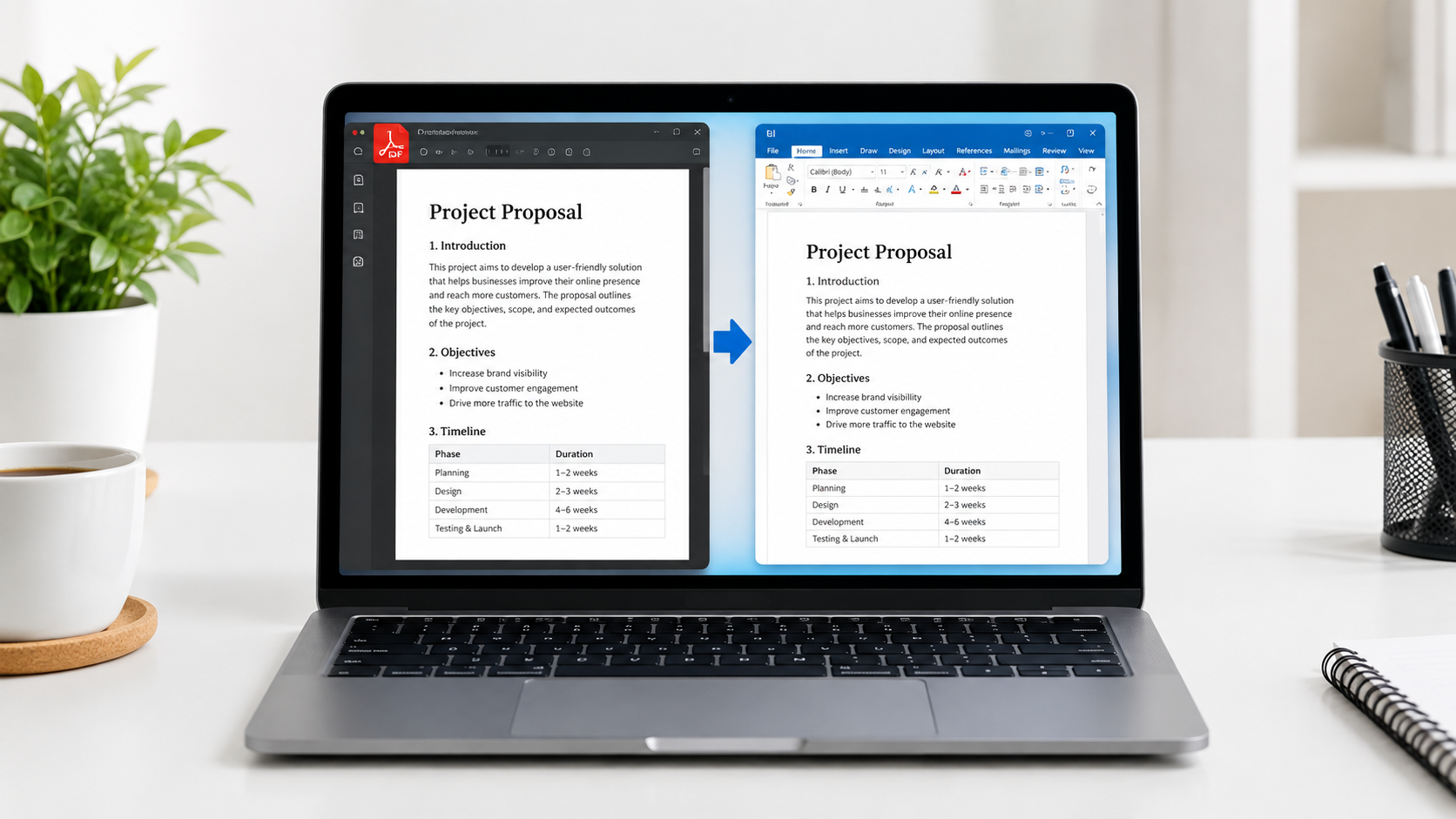
PDF files are a common choice for storing and sharing assignments, forms, reports, notes, invoices, and many other types of documents. One reason people prefer PDFs is that the text, images, and overall layout usually stay the same when the file is opened on different devices. However, making changes to a PDF is not always simple, especially when you need to edit or reuse its content.. If you need to change text, correct information, or add new content, converting the PDF to Word can make the process much easier.
Fortunately, there are several simple ways to turn a PDF into a Word file that you can edit and modify.Microsoft Word can open many text-based PDFs directly, while Adobe Acrobat provides dedicated PDF-to-Word conversion features. However, no conversion method can guarantee that every font, table, image, or page break will remain exactly the same.
This guide explains different ways to change a PDF into an editable Word document, keep the layout as close to the original as possible, and handle scanned PDFs that require text recognition.
What Is PDF to Word Conversion?
PDF to Word conversion means changing a PDF file into an editable Microsoft Word document, usually in DOCX format.
PDFs are primarily created to maintain the original look and structure of a document. In contrast, Microsoft Word files are made for editing, allowing users to change text, adjust formatting, aDuring conversion, the software tries to understand the text, images, tables, headings, and other elements in the PDF and recreate them in an editable Word file.
Because PDFs store page content differently from Word documents, some formatting may change during conversion.
Method 1: Turn a PDF into an Editable Word File with Microsoft Word
A simple option is to open the PDF file in Microsoft Word and let Word convert it into an editable document.
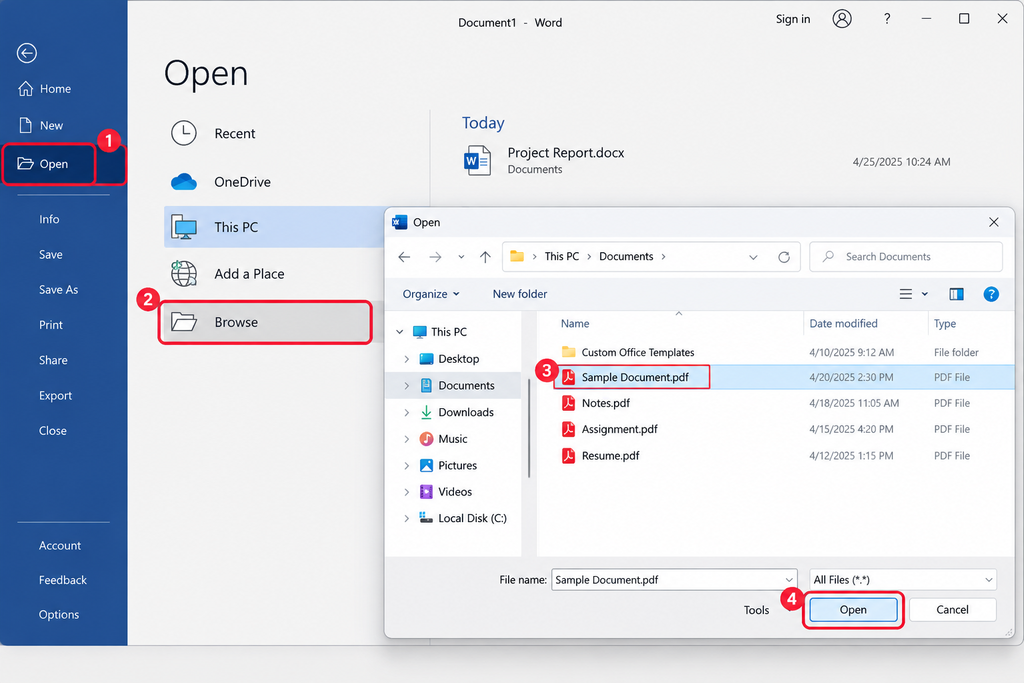
Steps to Convert PDF Using Word
- Open Microsoft Word on your computer.
- Select File.
- Click Open and choose Browse.
- Find the PDF file you want to convert.
- Select the PDF and click Open.
- Click OK.
- Wait for Word to finish the conversion.
- Check the document carefully.
- Save the converted file as a Word Document (.docx).
Microsoft explains that Word creates a copy of the PDF during this process, so the original PDF remains unchanged.
When Does This Method Work Best?
Microsoft says the conversion works best when the PDF is mostly text, such as a business, legal, or scientific document. PDFs containing many graphics, complex layouts, or unusual elements may require more manual editing afterward.
Method 2: How to Convert a PDF with Adobe Acrobat
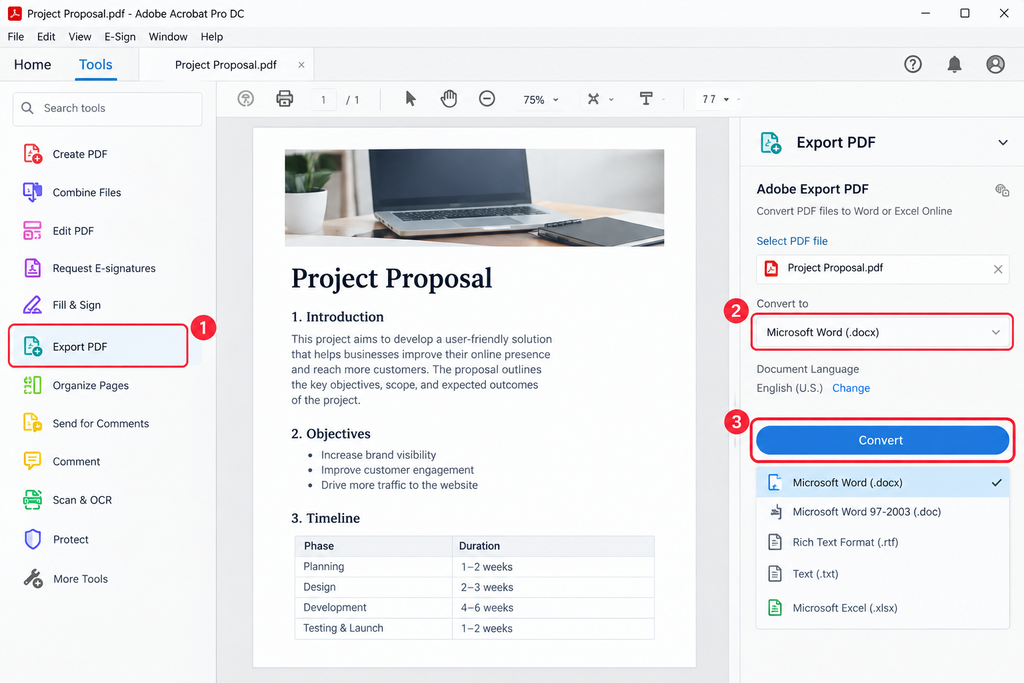
Adobe Acrobat also provides a dedicated method for converting PDF files into Word formats.
Steps to Convert PDF Using Adobe Acrobat
- Open the PDF in Adobe Acrobat.
- Select Convert.
- Choose Microsoft Word.
- Select DOCX or DOC.
- Choose Convert to DOCX or Convert to DOC.
- Select where you want to save the converted file.
- Enter a file name.
- Click Save.
Adobe identifies DOCX as the newer Word format and notes that it is generally smaller and more compatible with modern office applications.
If you use Acrobat Reader specifically, Adobe’s current documentation says exporting PDFs to Word through its Export PDF service requires a paid subscription.
Method 3: Convert a PDF Online
Another option is to use an online PDF-to-Word converter. These services allow users to upload a PDF, convert it, and download a Word file without installing desktop software.
This option works well if you only need to convert PDF files from time to time.
However, be careful when uploading documents containing private information. For privacy and security, do not upload confidential files to websites you do not know For important files, using trusted software on your own computer may be a safer choice.
Converting a Scanned PDF into an Editable Word File
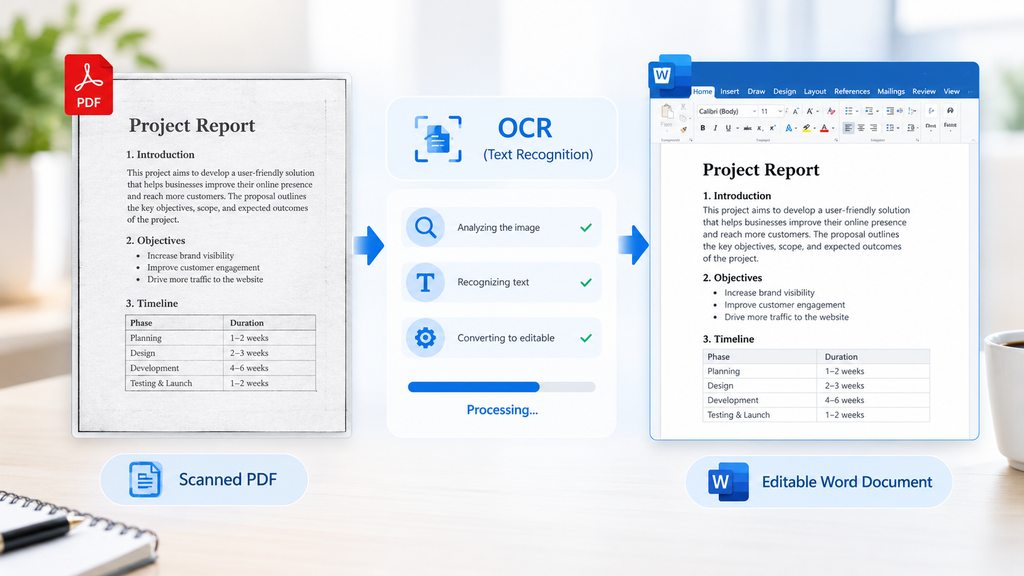
Scanned PDFs work differently from regular text-based PDF files. Instead of storing readable, selectable text, they often contain each page as an image, which means the words cannot be edited directly.
For these files, OCR (Optical Character Recognition) is important. OCR analyzes the image and creates searchable or selectable text. Adobe explains that its OCR feature can recognize text in scanned documents and create a searchable text layer.
- Open the scanned PDF using a program that has OCR (Optical Character Recognition) support.
- Look for an option such as Scan & OCR or another text-recognition feature.
- Select the pages where you want to recognize the text.
- Set the language that matches the document.
- Start the OCR process and let the software detect the text.
- Examine the converted text to make sure it has been recognized correctly.
- Fix any incorrect words, numbers, or formatting.
- If available, export or save the processed file as a Word document.
OCR is not always perfect. Poor-quality scans, unusual fonts, blurry text, and handwritten content can lead to recognition errors. Always proofread the converted document.
Tips for Preserving the Original Layout When Converting PDF to Word
If you want to convert PDF to Word without losing as much formatting as possible, follow these tips.
1. Use a High-Quality PDF
A clear, text-based PDF usually gives better conversion results than a low-quality scanned document.
2. Check the Fonts
If the original PDF uses unusual fonts, the Word version may look different. Check the font style and size after conversion.
3. Review Tables
Tables can sometimes move, change size, or lose their original structure. Microsoft lists some types of tables among the PDF elements that may not convert well.
4. Check Images
Make sure images have not moved, disappeared, or changed size.
5. Review Page Breaks
After conversion, the Word file may show changes in line spacing, paragraph breaks, or page arrangement compared with the original PDF.Microsoft specifically notes that converted documents may not have perfect page-to-page correspondence.
6. Check Headers and Footers
Look through every page to make sure headers, footers, and page numbers are positioned correctly.
7. Save the Original PDF
Before making any changes, save a separate copy of the original PDF so you can referThis gives you a backup if the converted document needs to be recreated.
Common Issues You May Notice After Converting PDF to Word
PDF conversion can sometimes produce unexpected results. Some common problems include:
- Text moving to a different position
- Different line breaks
- Changed page breaks
- Tables becoming difficult to edit
- Images moving from their original positions
- Missing or substituted fonts
- Headers and footers changing
- Footnotes appearing differently
- Scanned text containing spelling errors
Microsoft notes that elements such as complex tables, page borders, frames, some footnotes, bookmarks, comments, and certain PDF effects can be problematic during conversion.
Which PDF to Word Method Should You Use?
The right method depends on the type of PDF you have.
For a simple text-based PDF, opening the file directly in Microsoft Word can be a convenient option.
For a professional document that requires dedicated PDF conversion, Adobe Acrobat provides a specific PDF-to-Word workflow.
For a scanned document, look for software with OCR because the text may actually be stored as an image rather than editable text.
For a private or sensitive document, think carefully before uploading it to an online converter.
Frequently Asked Questions
Can I convert PDF to Word for free?
Yes. Microsoft Word can open and convert many PDF files if you have a supported desktop version of Word. Some dedicated PDF conversion services may require a paid plan.
Will PDF formatting always stay the same after conversion?
No. PDF-to-Word conversion can change some elements, especially complex tables, graphics, fonts, page breaks, and other complicated layouts.
Can I convert a scanned PDF to Word?
Yes, but scanned PDFs usually need OCR to recognize the text before it can be edited effectively.
Why does my converted Word document look different?
PDF and Word use different ways of representing document structure. During conversion, software has to recreate the PDF content as editable Word elements, so some spacing, tables, images, or page breaks may change.
Should I save the converted file as DOC or DOCX?
For most modern Word workflows, DOCX is the better choice because it is the newer Word document format and is widely supported. Adobe describes DOCX as the newer format introduced with Word 2007.
Final Thoughts
Converting a PDF to Word is useful when you need to edit or reuse information from an existing document. Microsoft Word provides a simple option for many text-based PDFs, while Adobe Acrobat offers a dedicated conversion process. Scanned documents may require OCR before their text can be edited properly.
If your main goal is to preserve formatting, always check the converted document before using or sharing it. Pay particular attention to tables, images, fonts, page breaks, headers, and footnotes. Keeping the original PDF as a backup is also a good practice.
With the right method and a quick formatting check, you can make PDF-to-Word conversion much easier while reducing common formatting problems.